Number Picker Wheel:
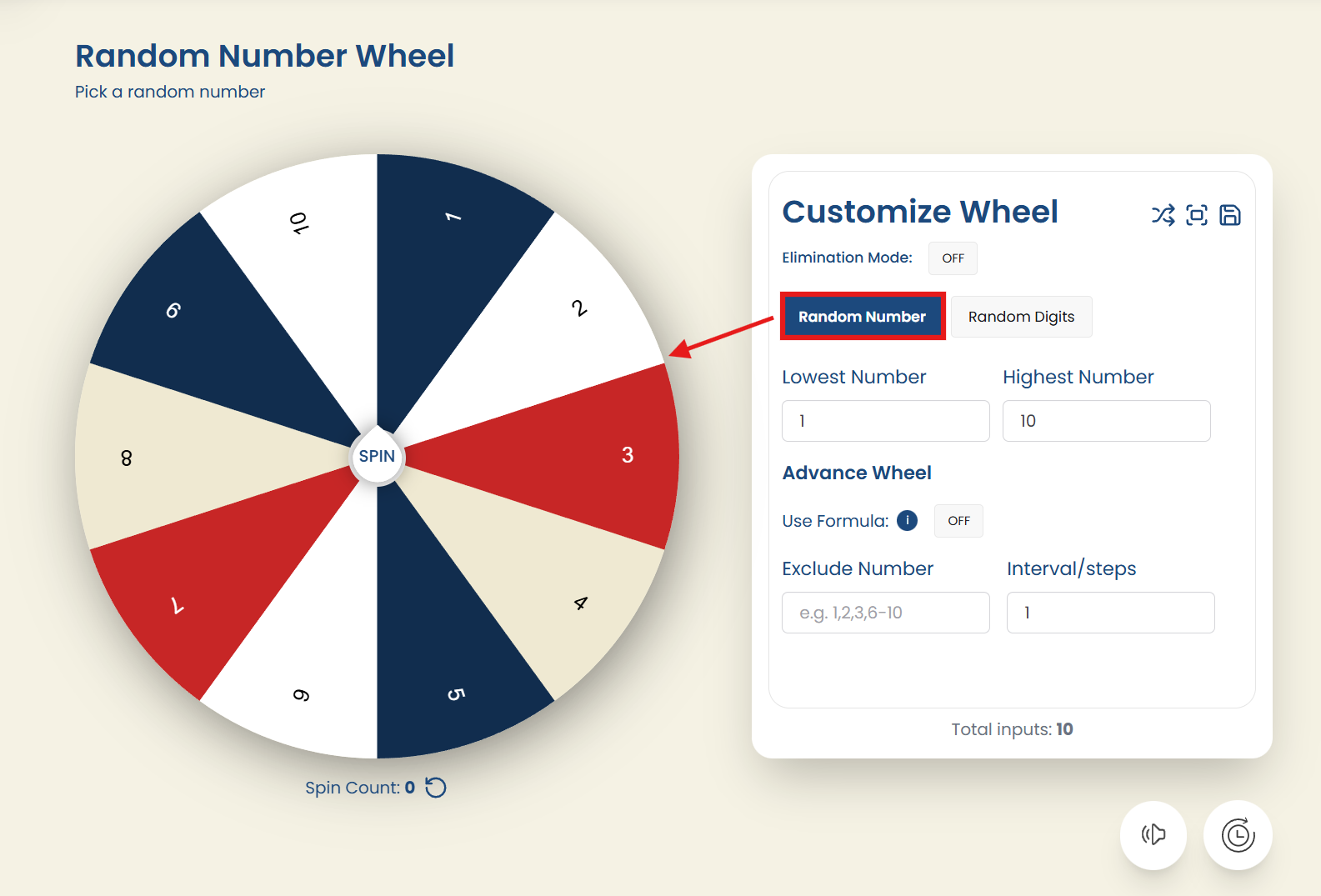 The Number Wheel is designed for anyone who wants to work with numbers in a fun and interactive way. The Wheel has two modes: Random Number mode and Random Digits mode.
Random Number Mode:
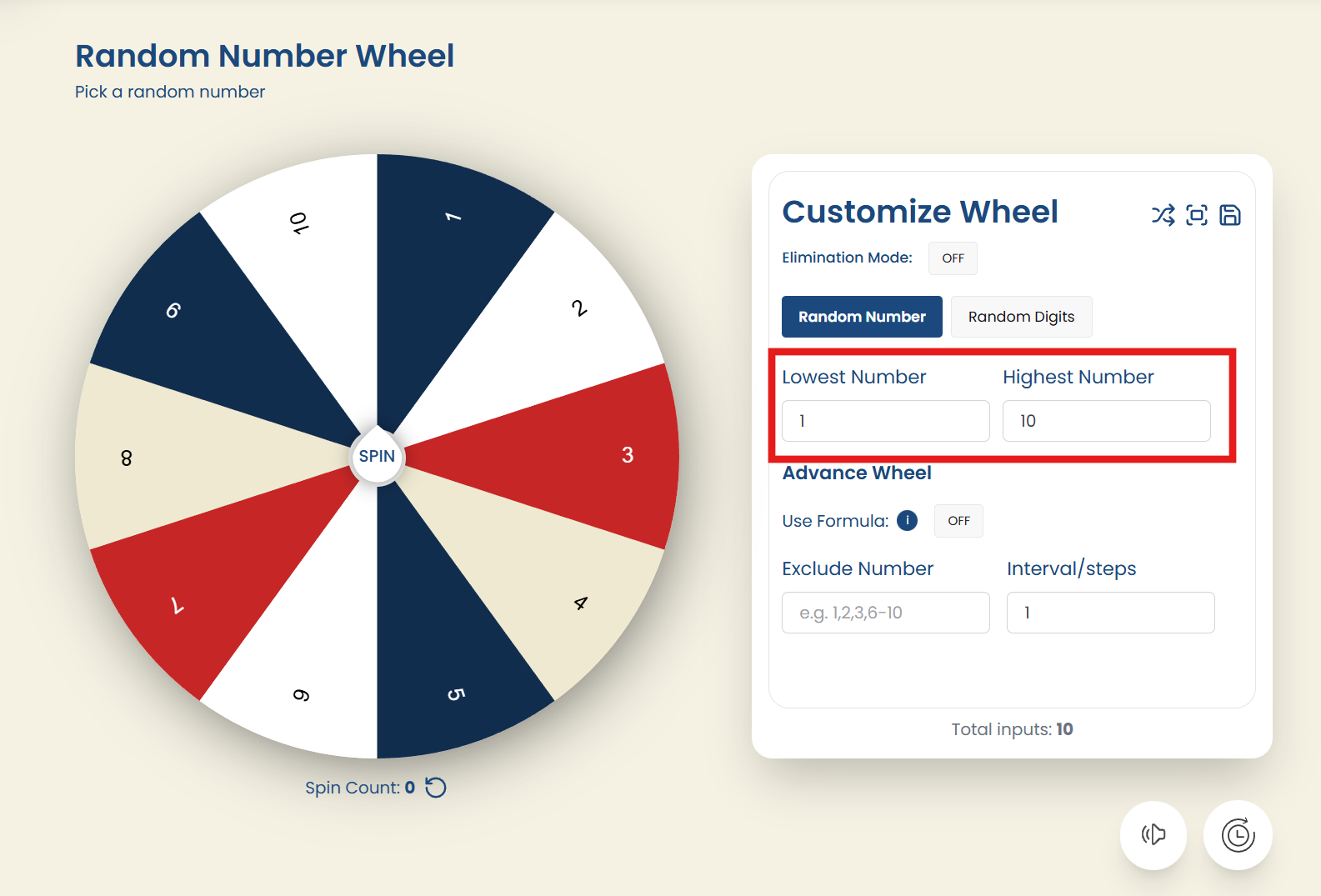
Random Number Mode allows the wheel to generate numbers by setting a lowest and highest value. The wheel automatically fills with all numbers within that range. Users can also apply advanced settings such as excluding certain numbers, adding intervals, or using formulas to fully customize how the numbers appear. Here’s how to use the Random Numbers wheel:- Lowest/Highest Number: Set the lowest and highest numbers for the wheel, and all numbers within that range will automatically appear. This allows you to define a clear numeric range for your random number selection.
Advanced Wheel Options:
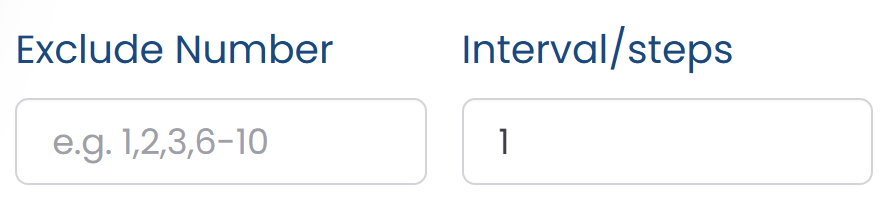
- Exclude Number: You can exclude specific numbers from the range by typing them into the Exclude Number box, separated by commas. You can also exclude entire ranges by using a hyphen, for example: 6-10, 13-18. This feature ensures certain numbers do not appear on the wheel.
- Interval / Steps: This option lets you control the spacing between numbers on the wheel. For example, entering 2 will place every second number in the sequence, skipping numbers in between. The interval continues until the highest number in the range is reached.
- Formula On/Off: Turning this option on allows you to use a custom formula to generate the numbers on the wheel. This provides advanced flexibility in defining patterns, sequences, or complex number arrangements. Follow the formula guidelines for proper formatting, including the use of commas, parentheses or brackets, semicolons, colons, and step values.
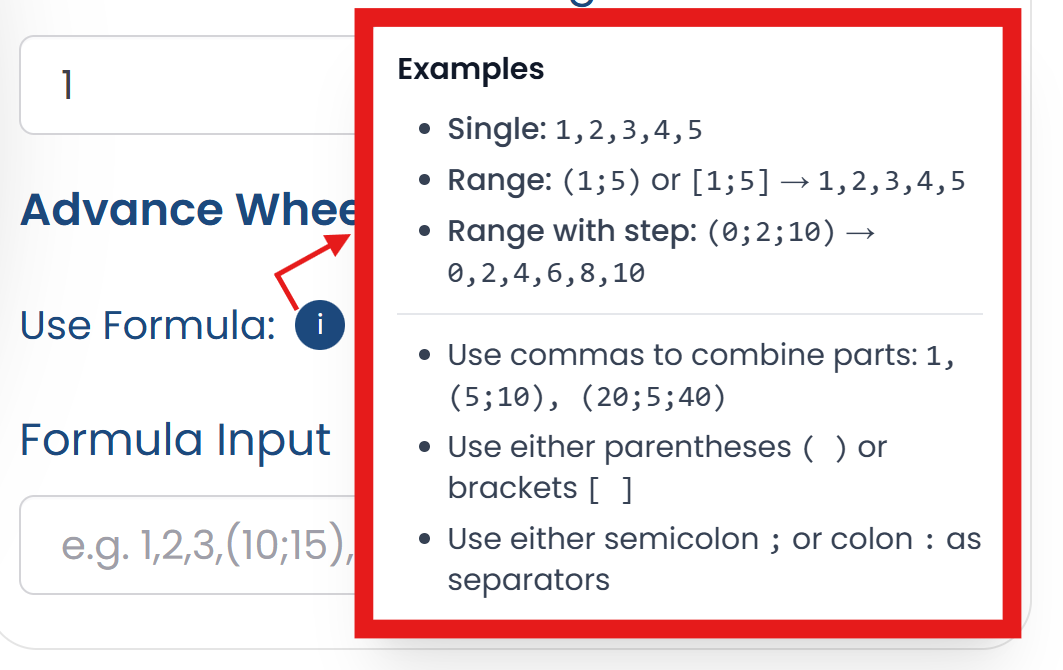
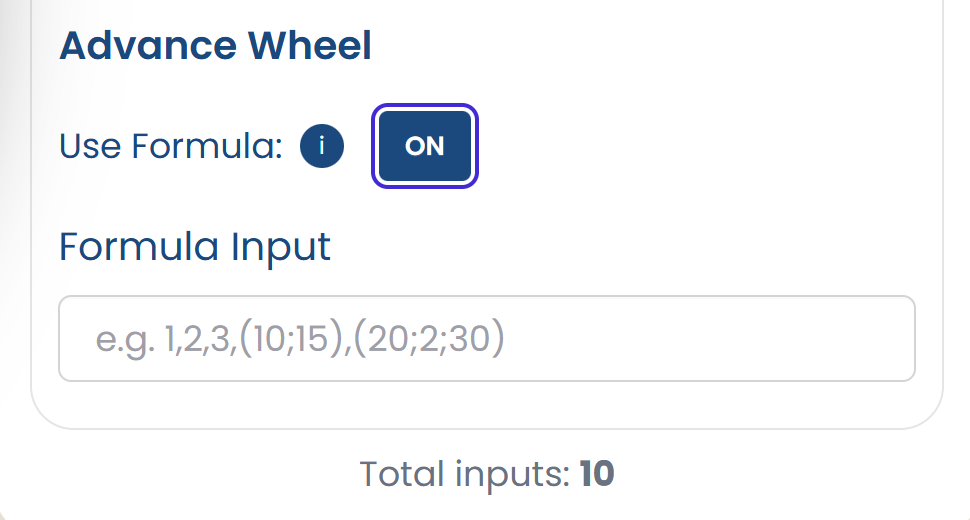 Examples
- Single: 1, 2, 3, 4, 5
- Range: (1;5) or [1;5] → 1, 2, 3, 4, 5
- Range with interval/step: (0;2;10) → 0, 2, 4, 6, 8, 10
- Use commas to combine parts: 1, (5;10), (20;5;40)
- Use either parentheses ( ) or brackets [ ]
- Use either semicolon ; or colon : as separators
 Whether you’re choosing random numbers for a raffle, picking a lucky number, or creating a unique way to teach math, this wheel is highly flexible and easy to use.
Random Digits Mode
Random Digits Mode allows users to generate individual digits that combine to form a complete random number. Instead of selecting from a numeric range, the wheel spins digit by digit, creating a unique number with each session. This feature provides full control over the length of the final number, making it both flexible and highly customizable.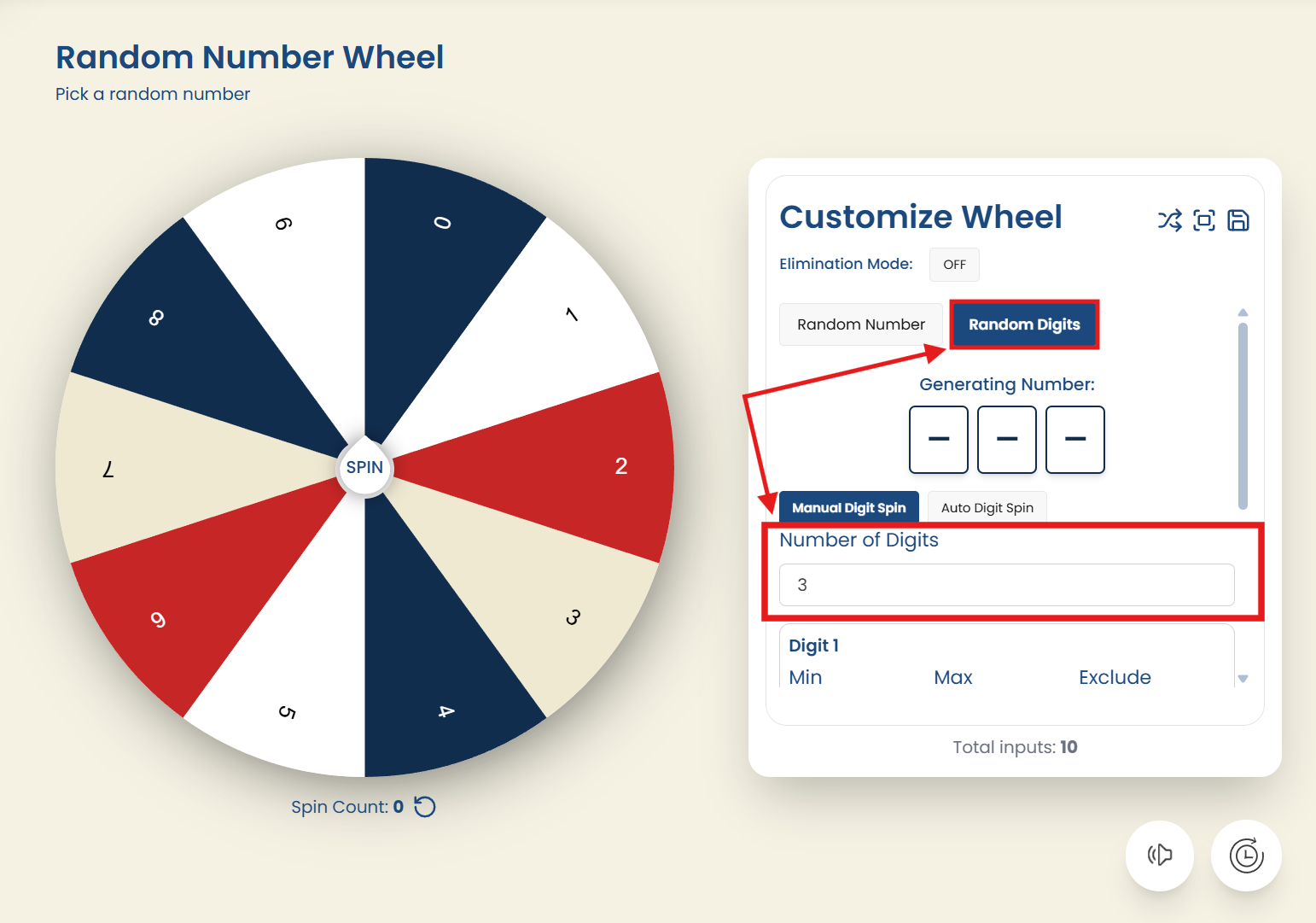 Here’s how Random Digits Mode works:
- Number of Digits: Users begin by selecting how many digits they want to generate using the Number of Digits box. This determines how many times the wheel will spin. The minimum limit is 1 digit, and the maximum is 10 digits.
- Digit Range Settings: For each digit, users can further customize how the digit should be generated by setting:
- Minimum Limit: The smallest possible digit allowed.
- Maximum Limit: The largest possible digit allowed.
- Exclude Digits: Any specific digits the user wants to remove from the range. These can be entered in the exclude box, separated by commas.
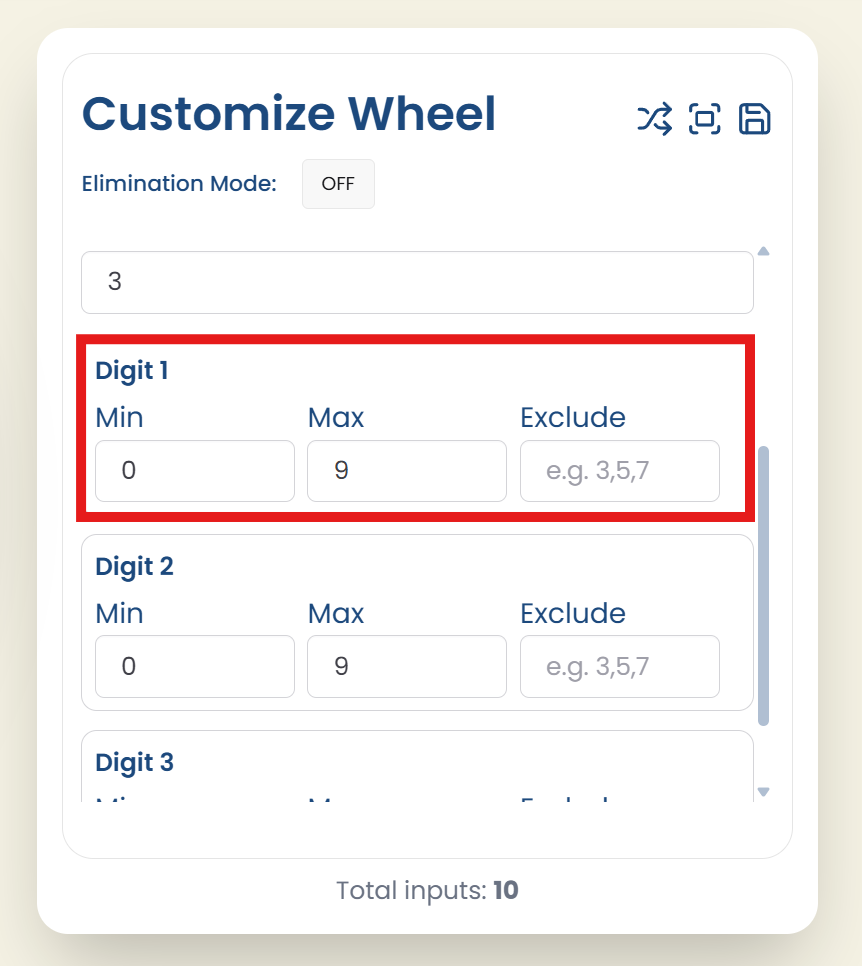 Random Digits Mode offers two ways to generate digits:

- Manual Digit Spin: In this mode, the user manually clicks the Spin button for each digit. After every spin, one digit is generated. The user keeps spinning until all selected digits have been produced and the final number is formed. This mode is ideal for users who want more control over each spin.
- Auto Digit Spin: In Auto mode, the wheel spins automatically without requiring manual clicks. It continues generating digits one after another until the required number of digits is completed. This mode is perfect for quick and hands-free random number generation.
How to Use The Number Picker Wheel?
STEP 1: Select the Number Wheel from the header: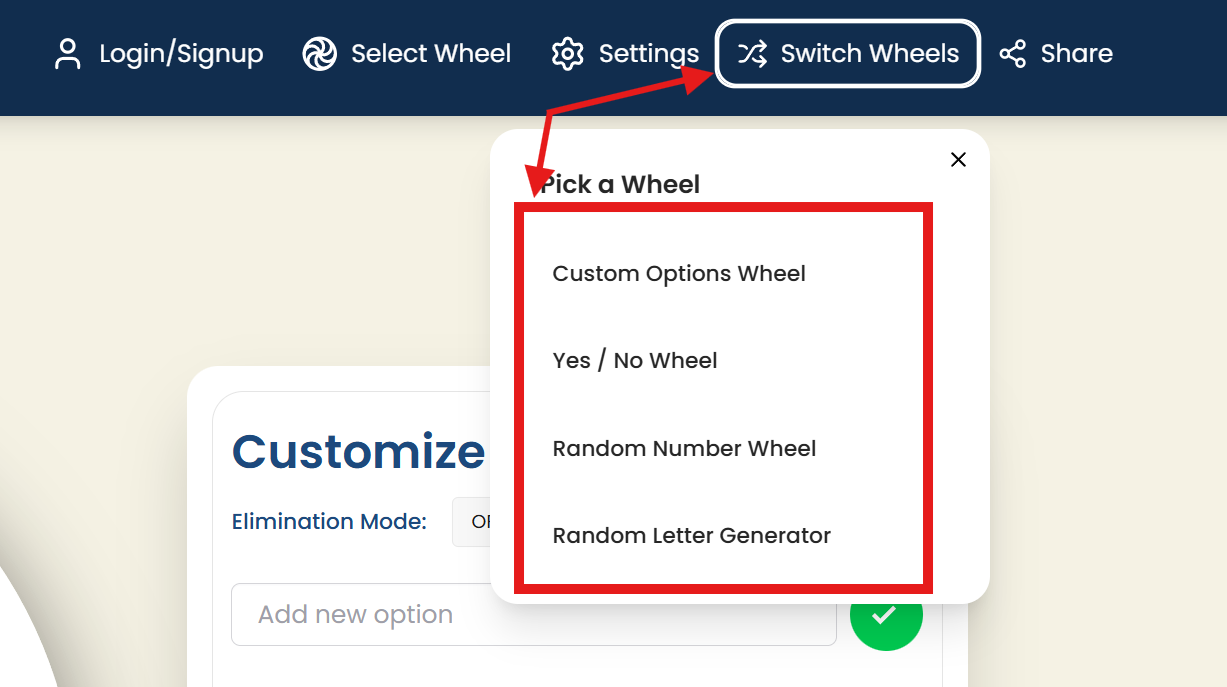 You can start by choosing the “Random Number Wheel” from the “Switch Wheels” drop-down menu in the header.
STEP 2: Click "Spin" to start:
You can start by choosing the “Random Number Wheel” from the “Switch Wheels” drop-down menu in the header.
STEP 2: Click "Spin" to start:
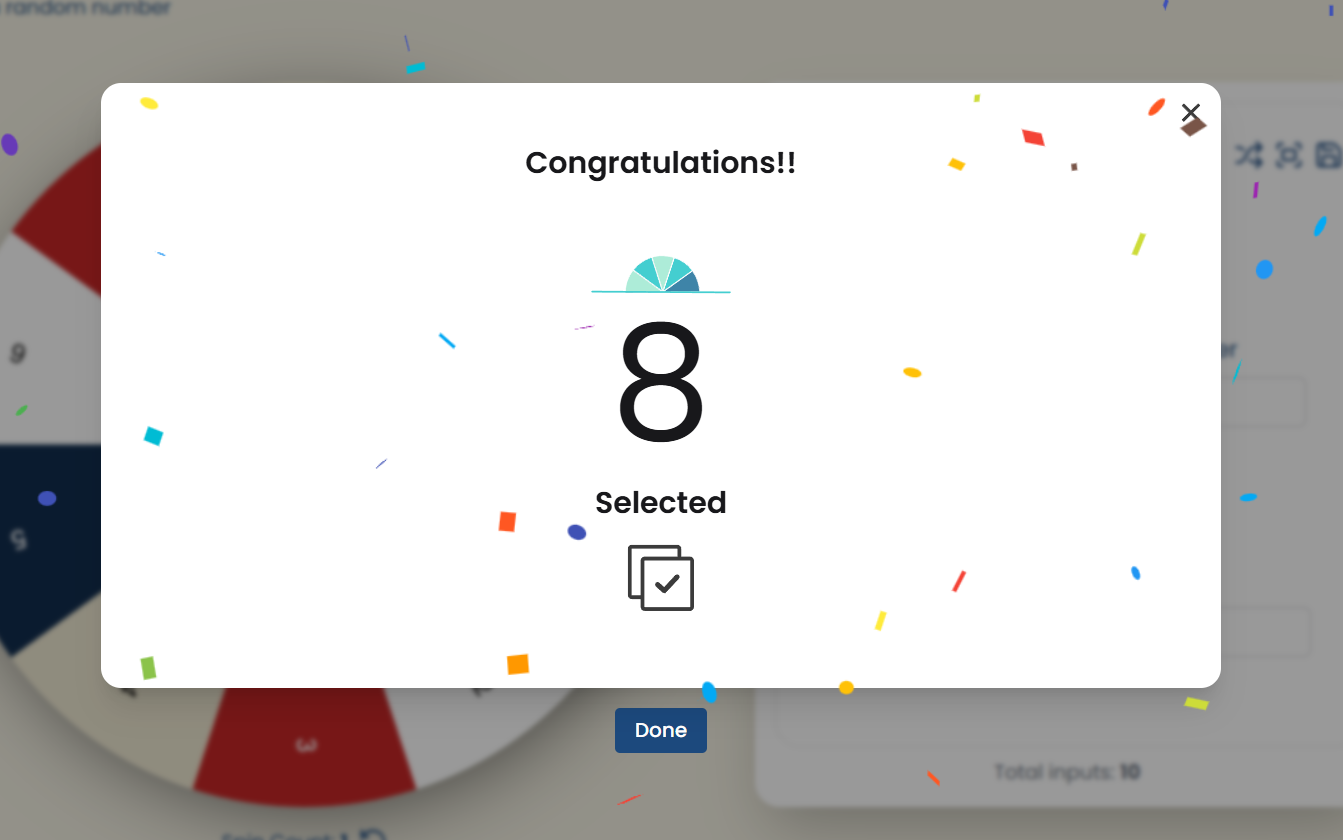
 Once your wheel is ready, click the spin button and watch it go! The smooth spinning animation adds a bit of excitement as you wait to see where it lands. The ticking sound gives the spinning an ASMR experience. When it finally lands on an option, a pop-up box highlighting the result with confetti falling down and celebration music in the background appears.
STEP 3: View the result and spin again if needed:
After the wheel stops spinning, the result is clearly displayed for you. If you want to try again or need another answer, just click spin and let the wheel do its magic once more.
Once your wheel is ready, click the spin button and watch it go! The smooth spinning animation adds a bit of excitement as you wait to see where it lands. The ticking sound gives the spinning an ASMR experience. When it finally lands on an option, a pop-up box highlighting the result with confetti falling down and celebration music in the background appears.
STEP 3: View the result and spin again if needed:
After the wheel stops spinning, the result is clearly displayed for you. If you want to try again or need another answer, just click spin and let the wheel do its magic once more.
Customise the Number Picker Wheel
You can make the wheel truly yours by editing each segment. Add labels, change colors, or adjust the number of segments to match your preferences. Here’s how to customize the Random Numbers Wheel:- Shuffle Wheel Items: The shuffle option randomizes the order of all items currently on the wheel, giving you a fresh and unpredictable arrangement each time you use it. This is helpful when you want to avoid any fixed order or create a more dynamic spinning experience. Simply click the shuffle icon, and the items will instantly rearrange themselves for a new, randomized setup.

- Fullscreen: The full screen option removes all editing and customization tools, letting you enjoy just the wheel on a big screen. Even in full screen, the sound adjustment and result display options stay in their usual spots, so you can still use them.
 To go back to the regular view, just click the Close Fullscreen Mode button in the bottom right corner.
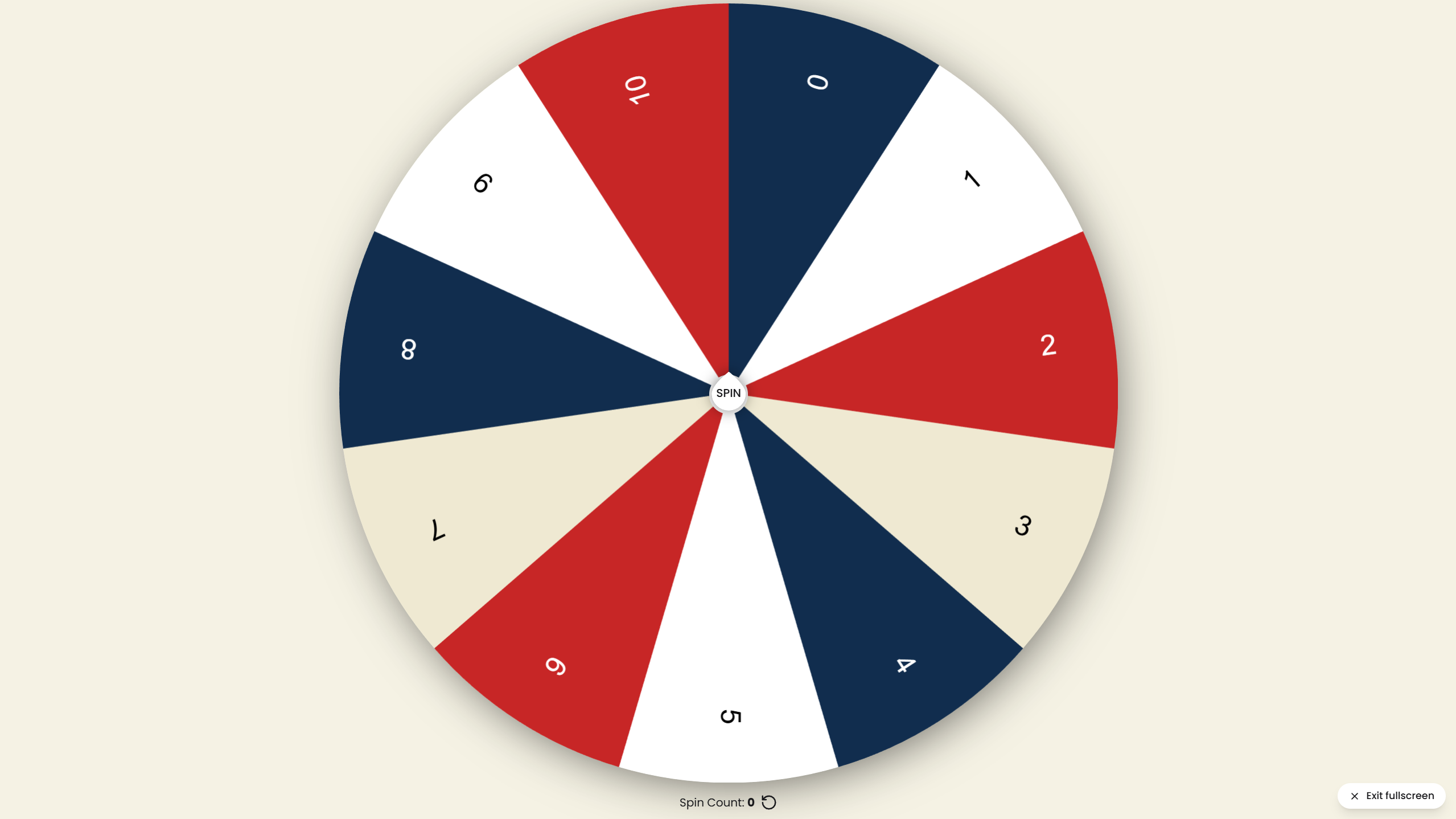
- Reset Count Option: The ↻ symbol allows you to reset the spin count and clear all the previous results. This is useful if you want to start fresh or track a new set of spins. Simply click on the symbol, and the wheel will be ready for a new session.

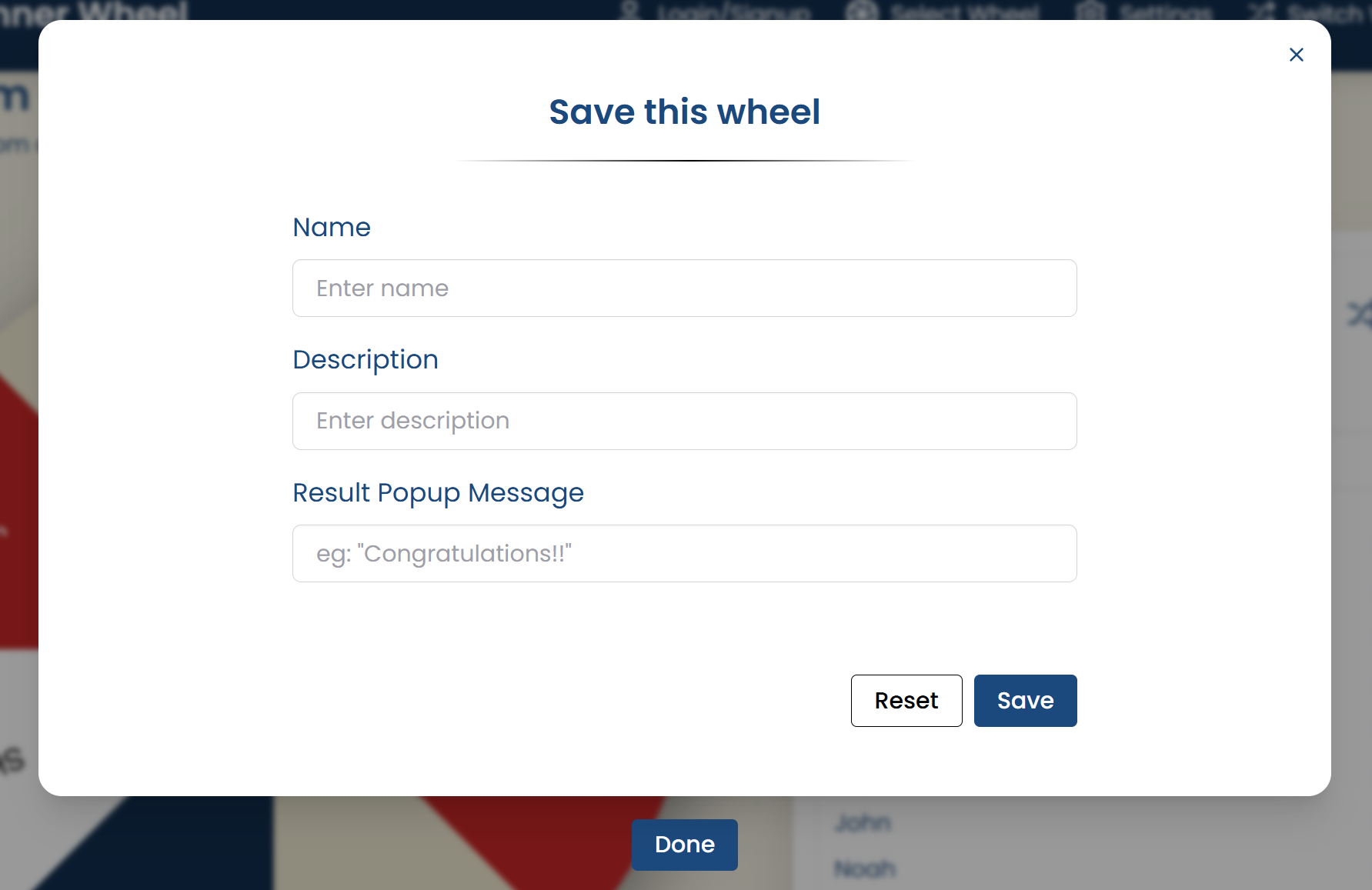
- Save / Modify Wheel: The 💾 symbol allows you to save your wheel for future use and easily make changes whenever needed. You can set or update the wheel’s name, description, and other details to keep everything organized. Once saved, your customized wheel can be accessed anytime without having to recreate it.
NOTE !! You have to be logged-in to be able to save the wheel.
 You can also edit the result pop-up message that appears when the result is displayed. By default, it shows a "Congratulations!!" message, but you can personalize it with any text that suits your needs, making the experience more fun and unique.
- Elimination Mode: Elimination Mode removes one option from the wheel after each spin, ensuring that no result is repeated. Once an item is selected, it is immediately taken off the wheel, and the user can continue spinning with the remaining choices. This process continues until only one option is left, making it perfect for assigning tasks, picking turns, or running activities where each choice should appear only once.

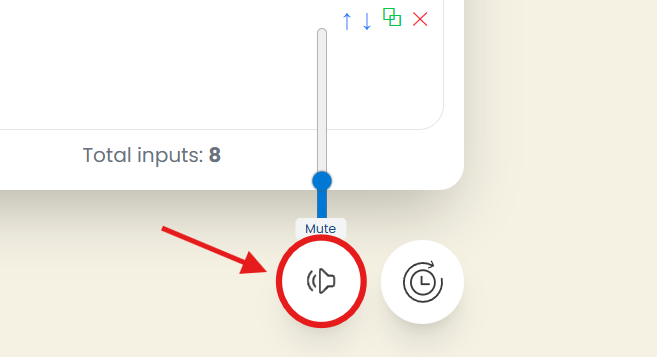
- Sound Adjustment: There is a speaker icon in the bottom right corner of the screen. You can click on the icon to adjust the wheel's volume to match your preference. You can make it louder, softer, or even mute it completely.
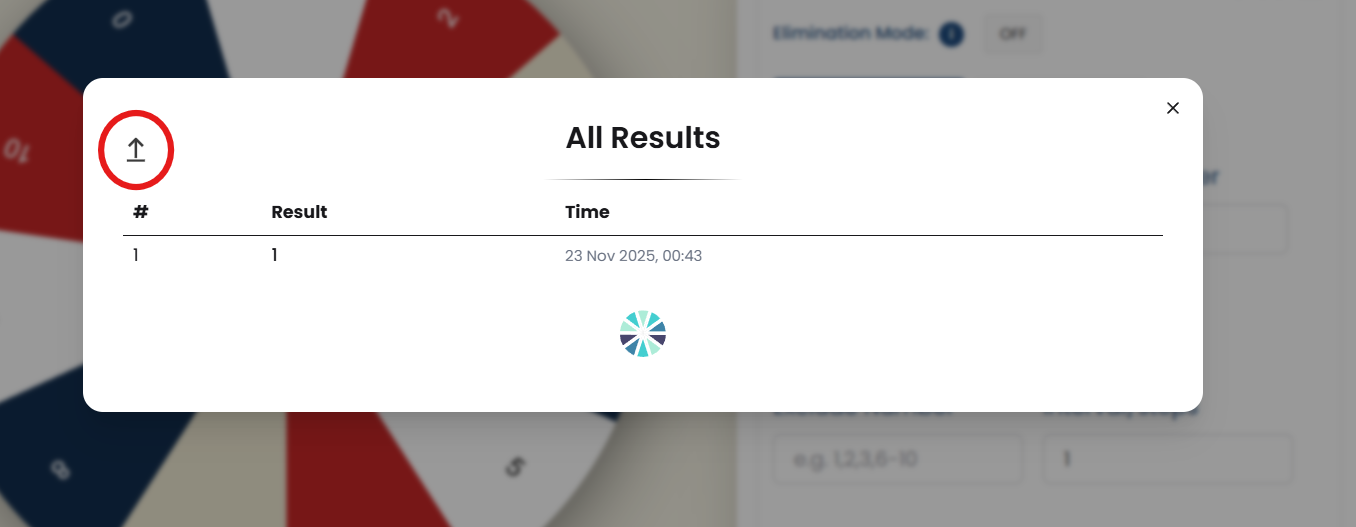
- Check History: The 【┘】 symbol allows you to check all the previous results of your spins. Click on it to easily track and review the outcomes without losing any information.

- All Results: The "All Results" window displays a complete history of every spin the user has made. It allows you to review previous outcomes at any time, making it easier to track patterns or keep records of selections. You can also download the entire list of results by clicking the download button located in the top-left corner of the window. This provides a convenient way to save or share your spin history for future reference.
Saved Wheels:
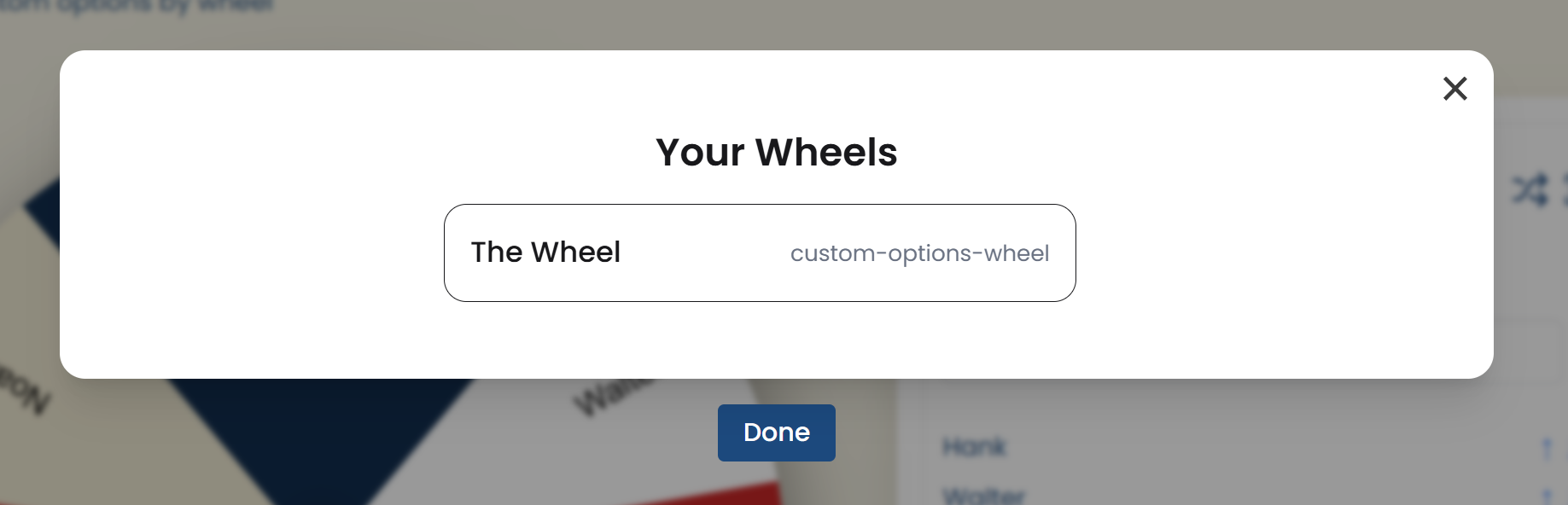
The Select Wheel option in the header menu lets you access all your previously saved wheels. Once you click/tap on it, you will see all your saved wheels. From there, you can choose any wheel, and it will instantly replace your current wheel on the screen. This makes it easy to switch between different wheels without recreating them.
Login/Signup:
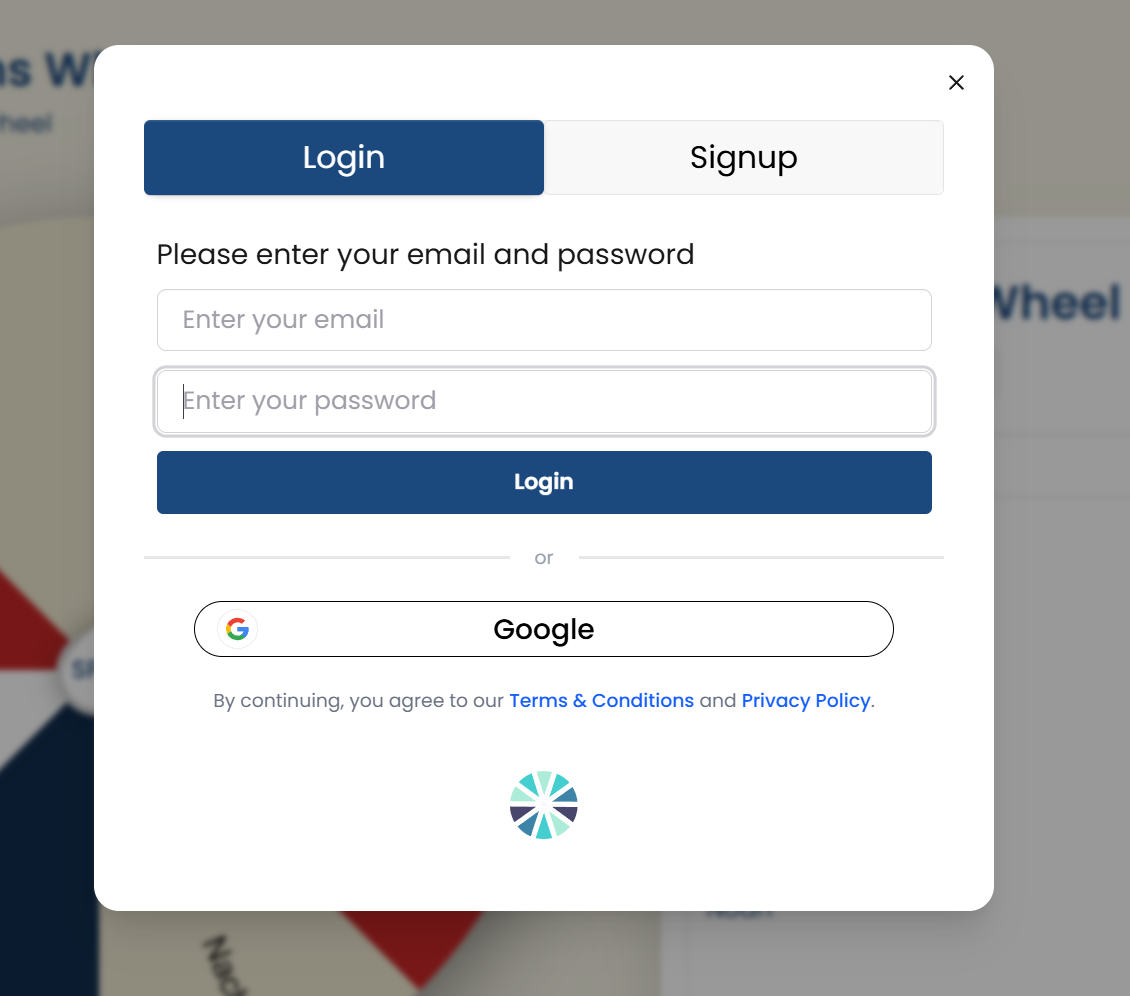
The Login/Signup feature allows users to create and access their personal accounts with ease. New users can register using their email and password, or choose the faster option of signing up through their Google account.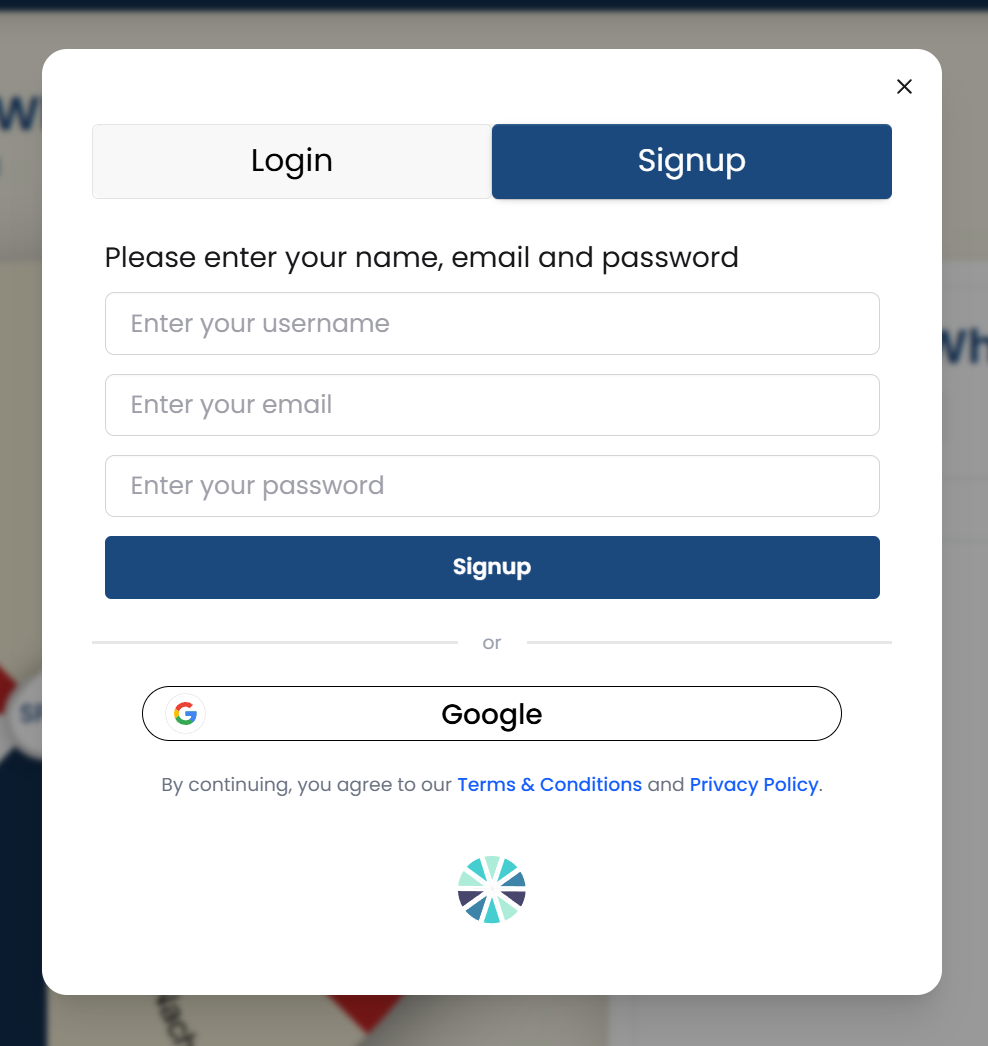 Once registered, users can log in using the same methods, ensuring a smooth and convenient experience. Creating an account enables users to save their wheels, revisit them later, and manage all their customizations in one place. This makes it easy to keep track of multiple wheels and switch between them whenever needed.
Wheel Settings:
The gear icon in the header menu lets you adjust the settings of the spinner wheel to fit your preferences. You can modify the Spin Behavior, turn Confetti effects on or off, adjust the Sound, and explore different Color Palette Themes to give your wheel a unique look. Simply click the gear icon and customize the settings to make the spinner wheel just the way you like it!
Spin Behavior:
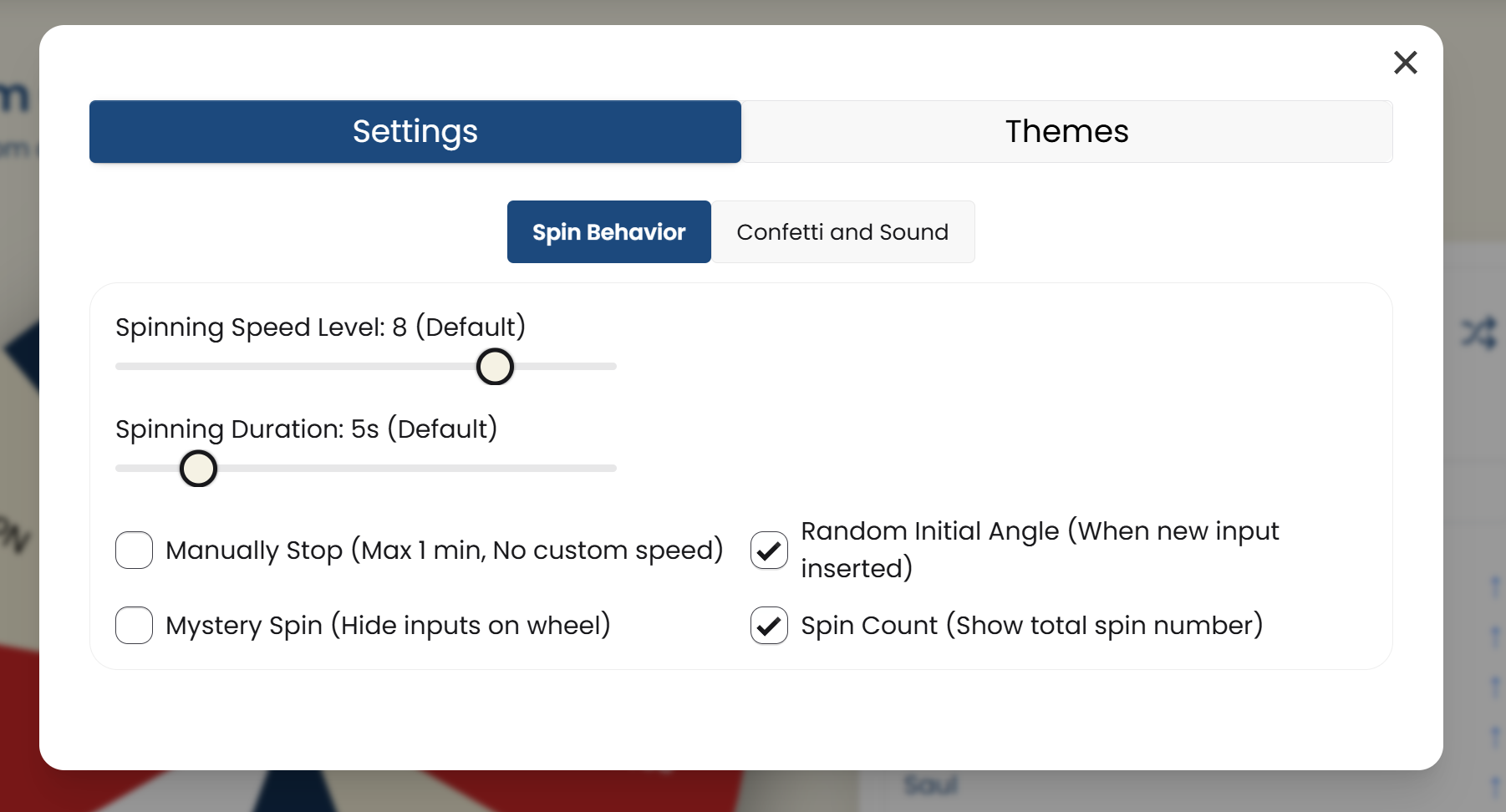
- Spinning Speed Level: By default, the speed is set to 8, but you can adjust it up to 10 levels using a sliding control for faster or slower spins.
- Spinning Duration: The spin duration is set to 5 seconds by default. You can slide to increase it up to 30 seconds for a longer spin.
- Manually Stop: Allows you to manually stop the wheel. The maximum spin duration is 1 minute, but custom speed adjustments won’t be available in this mode.
- Random Initial Angle: Enables the wheel to start spinning from a random angle whenever new inputs are added, ensuring more randomness.
- Mystery Spin: Hides all the inputs on the wheel while spinning, adding a fun element of surprise to the experience.
- Spin Count: Displays the total number of spins, letting you track how many times the wheel has been spun.
Confetti and Sound:
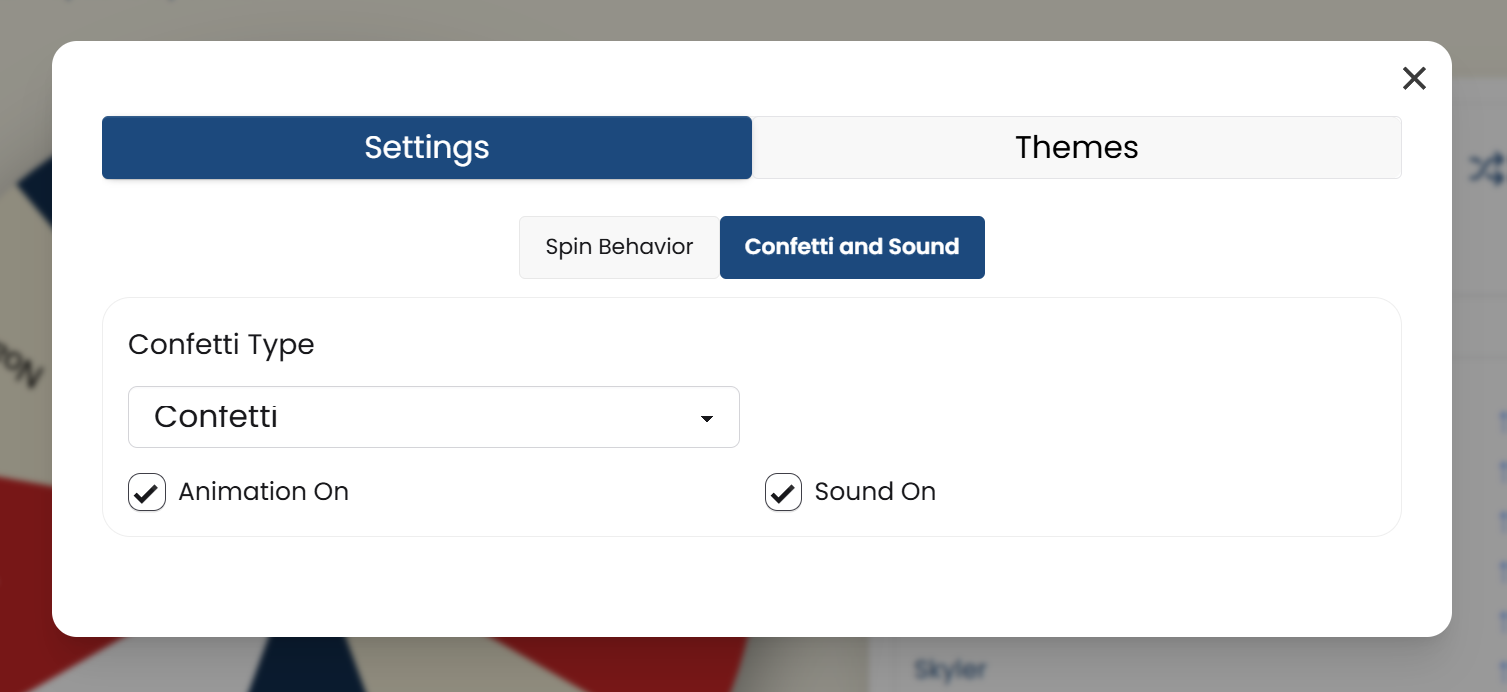
- Confetti Type: Choose between Confetti or Fireworks effects to display when the wheel stops spinning.
- Confetti On/Off: Enable or disable the confetti effect.
- Sound On/Off: Turn the sound on or off based on your preference.
Wheel Themes:
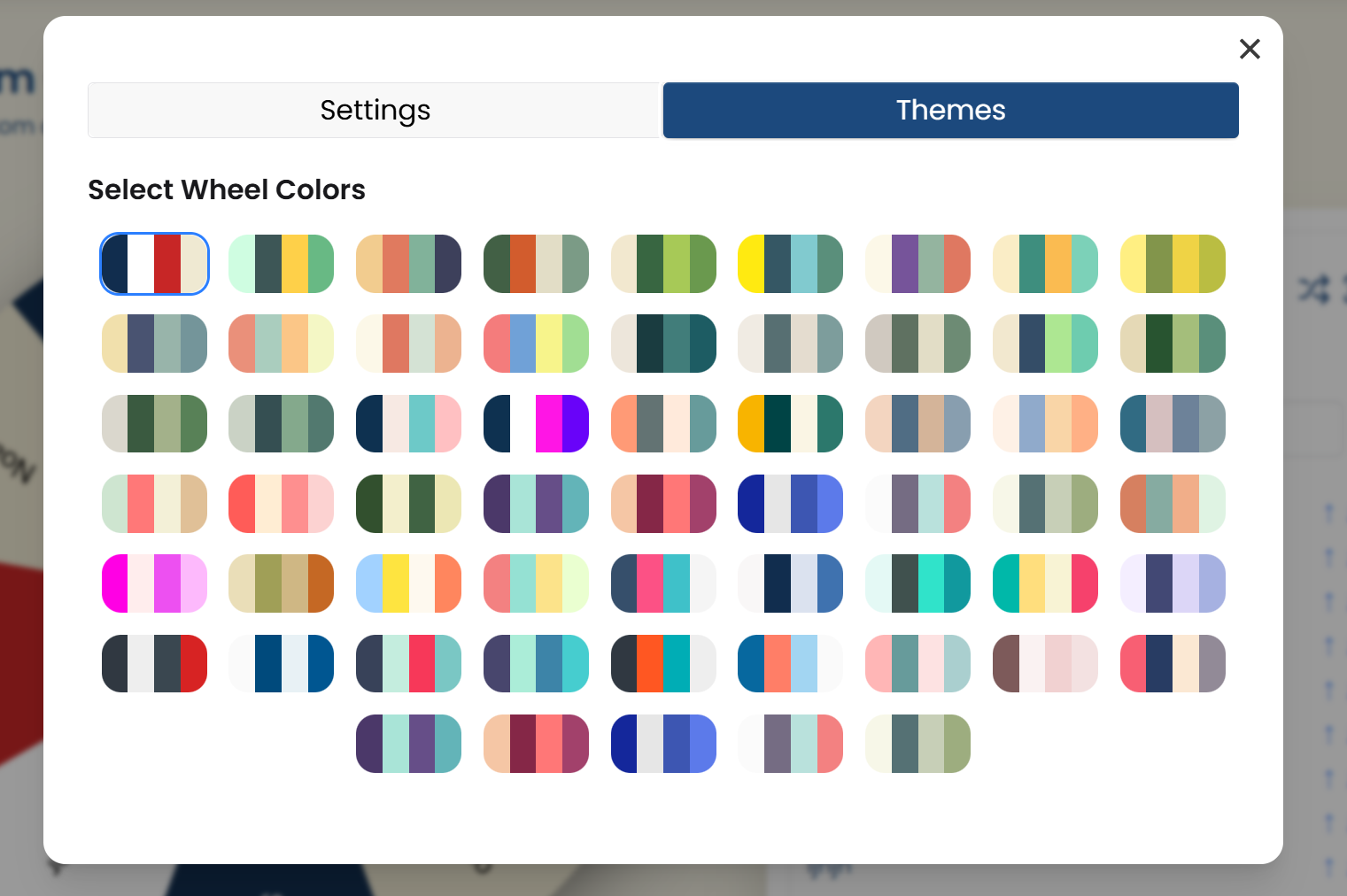 The Wheel Theme Settings allow you to customize the look of your wheel by choosing from 59 unique color palettes. Each palette offers a distinct combination of colors, giving your wheel a fresh and vibrant appearance. This feature makes it easy to match the wheel’s design to your preferences or the theme of your activity.
Switch Wheels:
The Switch Wheels option, found in the header menu, allows users to pick from pre-built wheels. You can use them as they are or customize them based on your preferences. The available options include:
- Yes or No Wheel: A straightforward wheel featuring two choices: Yes and No, perfect for making quick decisions or settling simple dilemmas. If needed, you can also enable the Maybe option, turning it into a Yes/No/Maybe wheel for situations that require a more flexible answer.
- Random Number Wheel: A wheel featuring a range of numbers. Perfect for activities like random number selection, games, or lotteries.
- Random Letter Wheel: A wheel with alphabet letters. Great for educational purposes, word games, or randomly picking names starting with specific letters.
- Custom Options Wheel (Default): This wheel allows you to add and customize your own options. Whether it's names, activities, or specific choices, you can design it to suit any purpose.
Share Option
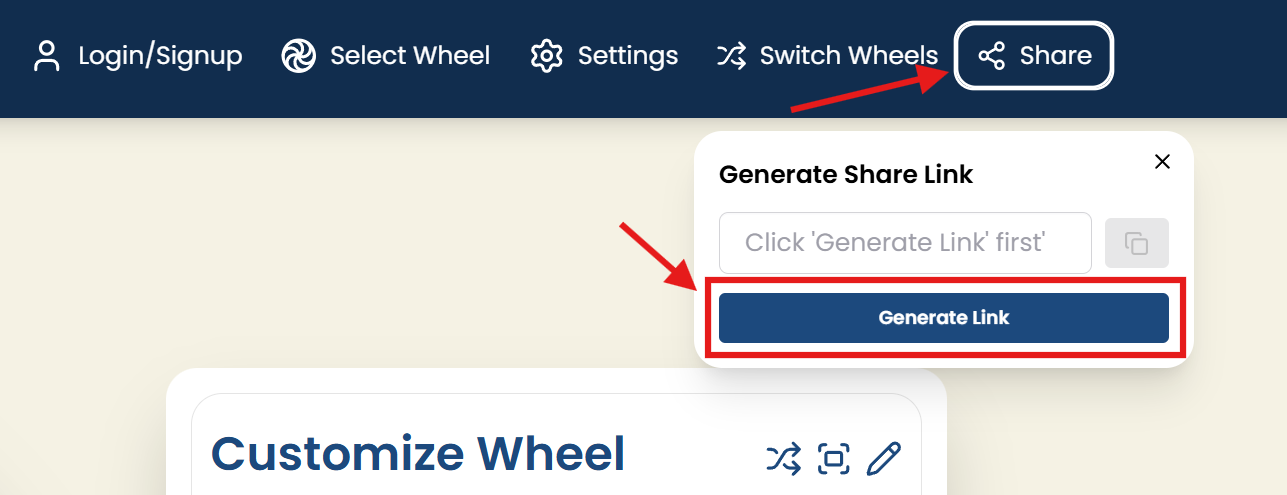
The Share Option, located in the header menu, allows you to generate a shareable link for your saved wheel. This makes it easy to share your customized or pre-built wheels with others. Simply click the option, copy the link, and share it with friends, family, or colleagues for collaborative or fun activities.NOTE !! You have to log-in, save the wheel and then you’ll be able to share the saved wheel.